4 Ways to Hide Apps on Any Samsung Phone

There can be a plethora of reasons behind you searching for ways to hide apps on your Samsung phone, maybe to stay away from notifications while you are at work or maybe to hide unremovable pre-installed apps. In today’s article let’s have a look at how you can add another layer of privacy to your phone by hiding specific apps on your Samsung phone. Meanwhile, you can also learn how to stop unwanted apps from downloading automatically.
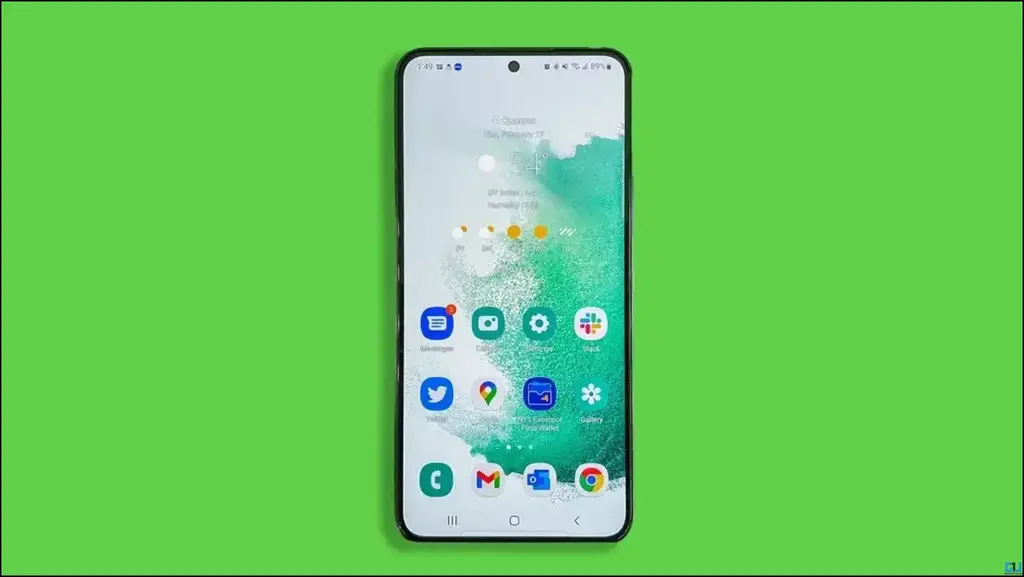
Methods to Hide Apps On Any Samsung Phone

As we know that Samsung uses a proprietary Android software overlay called One UI, which is different from all other brands so the number of ways we are going to discuss, will specifically work on your Samsung phone. For other Android users, we have another guide to hide apps on all other Android smartphones.

Hide Apps Using the Home screen

The simplest of all ways
Read more

3 Ways to Check the Uploaded Resolution of YouTube Shorts

With the increase in short-form content consumption, YouTube Shorts has become quite popular lately. However, if you wish to check its resolution, there’s no conventional way to do so. We have found some workarounds, and in this read, we’ll discuss the easy ways to check the uploaded resolution of YouTube Shorts. Alternatively, you can also check out our article to download YouTube Shorts On Android, iPhone, and PC.

Methods to Check YouTube Shorts Uploaded Resolution

Below we have mentioned three quick ways to easily check the resolution of YouTube Shorts. Let’s discuss each of them in detail.

Using Shorts Noob

Shorts Noob is a website used to download YouTube Shorts. However, the catch is that it also reflects the maximum resolution at which you can download the video, which is the original resolution of the YouTube Shorts. Here’s how to use it:

1. Visit the Shorts Noob website on

Read more

How to Delete Downloaded Update on Mac Without Installing

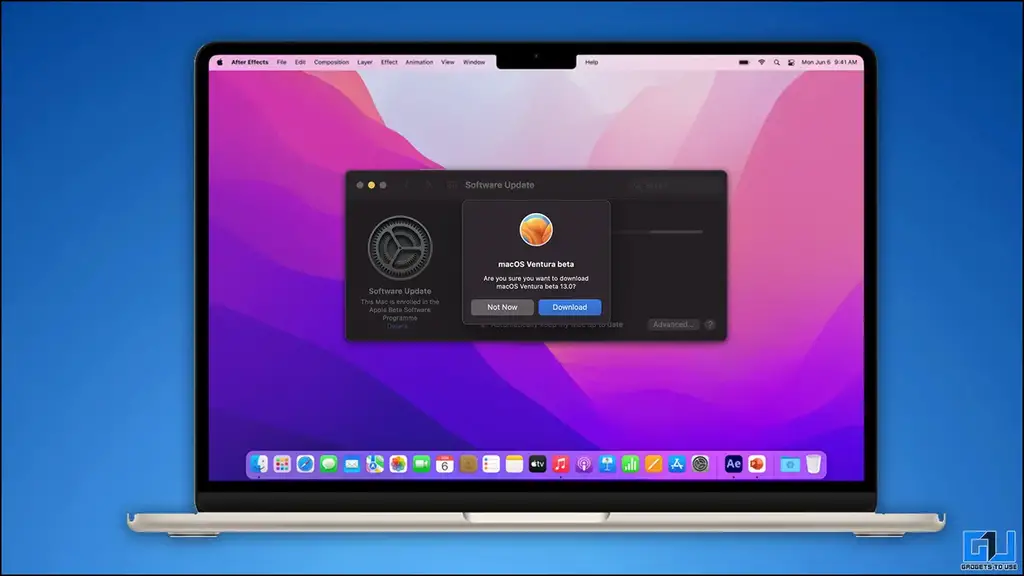
By default, your Mac device will automatically check for system updates and download them. Given that update files are quite large, they can take up a significant amount of system storage. So in this article, we will address how to turn off automatic system updates and how to delete the downloaded macOS update on your Mac without installing them.

How to Delete a Downloaded Update on Mac?

In case your Mac has already downloaded the update file to your system and it is taking up storage space that you want to clear up for something important then follow the steps below to delete the downloaded update from your Mac. This is for devices running macOS Monetary.

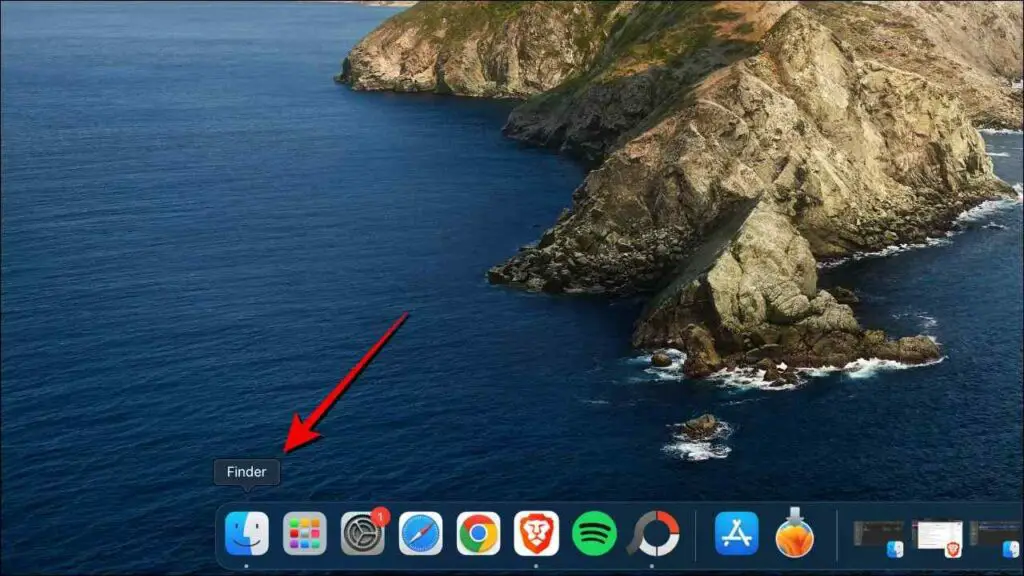
1. Open the Finder from the dock.

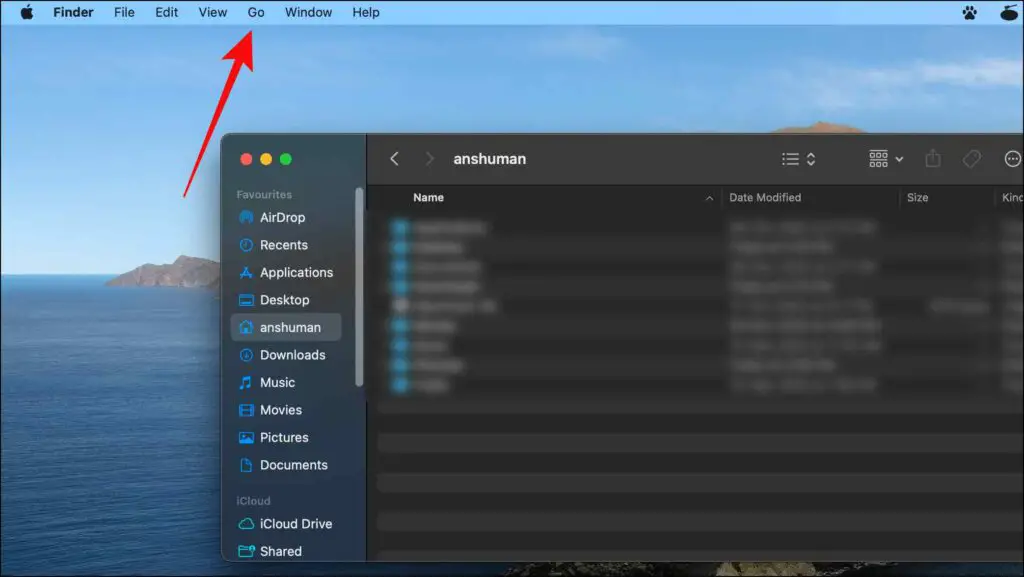
2. Click on the Go option in the top status bar.

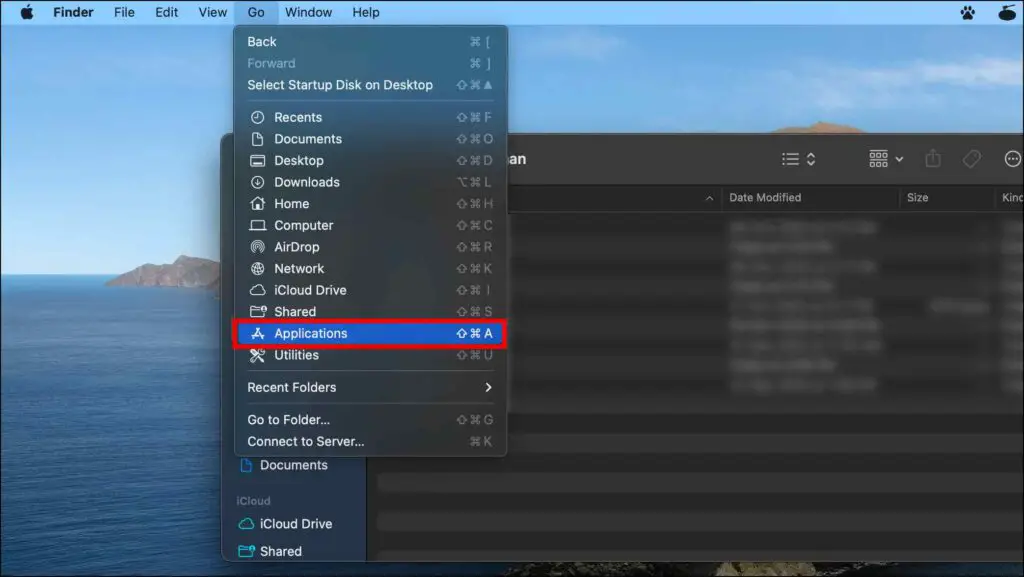
3. From the list, select Applications.

4. Within the Applications folder, search for the macOS

Read more